
The short answer
- Moving from a mechanical hard drive to an NVMe SSD is the highest-value upgrade you can make to an ageing laptop.
- A fitted SSD upgrade with a full clone is £79 – £189 including the drive, labour and VAT.
- We clone sector by sector, so your applications, licences, settings and files survive — nothing to reinstall or reactivate.
- An M.2 slot does not guarantee NVMe support: some machines only accept M.2 SATA, which is much slower.
- A cooling service done at the same time costs less than doing it separately, because the machine is already open.
People replace laptops over slowness that has nothing to do with the processor. A 2019 business ultrabook with a mechanical hard drive feels broken; the same machine with an NVMe SSD feels current. The chip did not change. The bottleneck did.
This is the single best-value job on our price list, and it is worth understanding why the difference is so large — because that also explains what an SSD will not fix.
Why the difference is so large
A mechanical hard drive stores data on spinning metal platters and reads it with a head on a moving arm. To read something, the arm physically swings to the right track and then waits for the platter to rotate the data underneath it. Both of those are mechanical movements measured in milliseconds.
For reading one big file laid out in sequence, that is fine — the head parks and the data streams past. But almost nothing a computer does is one big sequential file. Booting Windows touches thousands of small files scattered across the disk. Launching an application does the same. So does opening a browser with a dozen tabs, or searching a mail archive.
Each of those scattered reads costs another seek and another rotation. A typical laptop hard drive manages on the order of a hundred random operations per second. An SSD has no arm and no platter — every location is reached electronically, in microseconds — and manages orders of magnitude more.
That gap is why the machine feels transformed rather than merely improved. You are not removing a small delay; you are removing the thing everything else was queuing behind. It is also why the difference shows up most in exactly the moments people find most annoying: start-up, launching software, waking from sleep, and anything running while something else is installing.
SATA, M.2 and NVMe, in plain English
Three terms cause most of the confusion, and two of them describe different things. A drive has a form factor (its physical shape and connector) and a protocol (the language it speaks to the machine).
- 2.5-inch SATA. The traditional laptop drive shape — a small rectangular box. Both mechanical hard drives and older SSDs use it. A 2.5" SATA SSD is still a huge upgrade over a mechanical drive, and on many older machines it is the only option.
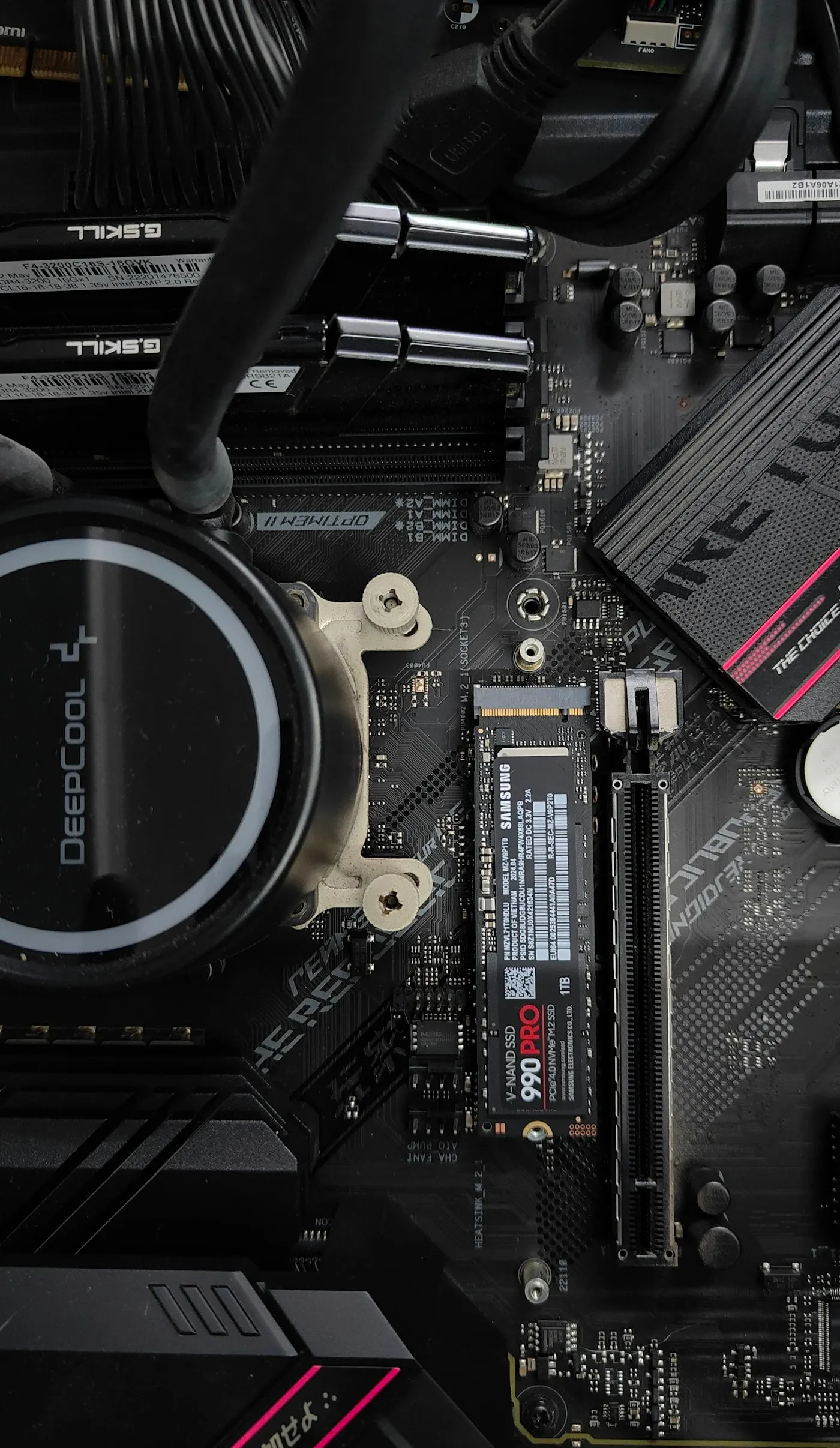
- M.2. A form factor, not a speed. A bare stick of circuit board roughly the size of a stick of chewing gum, screwed flat to the motherboard. M.2 tells you the shape and nothing else.
- M.2 SATA. An M.2-shaped drive that still speaks the SATA protocol. Physically modern, performance-wise essentially the same as a 2.5" SATA SSD.
- M.2 NVMe (PCIe). An M.2-shaped drive speaking NVMe over PCIe lanes. This is the fast one — several times the throughput of SATA, and much better at handling many requests at once.
The trap: an M.2 slot in your laptop does not guarantee NVMe support. Plenty of machines from the mid-2010s have an M.2 slot wired only for SATA. Fit an NVMe drive into one and the machine simply will not see it. The connector notches ("keying") differ between the types, which prevents some mismatches but not all of them.
One happy consequence of all this: many laptops have both a 2.5" bay and an M.2 slot. Where that is true we fit the SSD as the new system drive and keep the original hard drive in place as bulk storage — so you get the speed without giving up the capacity.
Finding out what your machine accepts
Three ways, in order of reliability:
- A compatibility tool. Crucial's system scanner and compatibility tool is the quickest honest answer for most consumer machines — it reports the slots you have and what they accept. You do not have to buy their drives to use it.
- The manufacturer's service manual. Dell, HP and Lenovo publish maintenance manuals per model, with the storage options and slot types listed. Search your exact model number plus "service manual".
- Ask us. Send the model and we will tell you what it takes, what it is worth fitting, and what it will cost — before you buy anything.
One category to check before getting your hopes up: on many thin-and-light machines and all modern MacBooks, the storage is soldered to the board and cannot be upgraded at all. That is a genuine limitation, and it is one of the factors in our repair-or-replace framework, because a machine you cannot upgrade has a shorter useful life.
Clone or clean install?
We clone by default, and it matters more than people expect.
A sector-level clone copies the whole drive — operating system, applications, licences, settings, browser profiles, saved passwords, printer drivers, the lot. You get the machine back exactly as you left it, only fast. Nothing to reinstall. No software to reactivate. No hunting for the licence key of something you bought four years ago.
That last point is where DIY upgrades most often go wrong. A clean install is straightforward; getting back to a working setup afterwards is what eats the weekend.
A clean install is the better answer when:
- The existing installation is already unstable, malware-affected or years of accumulated mess.
- You are moving to a smaller drive and the data will not fit.
- The machine is changing hands.
Either way there is one thing to check first: does the data fit? A 1TB hard drive with 800GB used cannot be cloned onto a 500GB SSD without clearing space first. We check this at quote stage so there are no surprises, and we always keep the original drive intact until you have confirmed the new one is working.
Realistic before and after
The clearest example from our own bench is a fleet job: fourteen HP EliteBook 840 G5 machines running 5400rpm mechanical drives, migrated to NVMe with a full clone, memory taken to 32GB and every unit stripped and re-pasted. Average boot time dropped from 94 seconds to 11.
That is a real measured result on one specific set of machines, not a guarantee for yours. Your starting point, drive health and how much software loads at start-up all move the number. But the shape of the result — a boot time measured in seconds rather than a minute and a half — is typical when the old drive was mechanical.
What you will notice, roughly in order:
- Start-up and sign-in stop being a coffee break.
- Applications open more or less immediately rather than bouncing.
- The machine stops freezing when something updates in the background.
- Waking from sleep is instant.
- Searching files and mail stops being something you avoid.
- It is silent, and it survives being knocked while running — there is nothing spinning to damage.
Capacity and endurance
Capacity. Look at how much you are using now, add headroom, and round up. 500GB suits most people; 1TB if you keep photos, video or games locally. Do not fill an SSD to the brim — they slow down when nearly full, so leaving 10–15% free is worth doing.
Endurance. SSDs have a finite number of writes, quoted as TBW (terabytes written). The figure sounds alarming until you look at it properly: a typical 500GB consumer drive is rated for something in the region of 150–300TBW, while normal laptop use writes a few terabytes a year. For most people the drive will outlast the laptop by a wide margin.
Warranty. Reputable drives ship with a three- or five-year warranty. The premium over an unbranded drive is small and it buys you a manufacturer who will honour a failure. We fit drives with a five-year warranty as standard.
What the upgrade costs
| Upgrade | Typical price | What drives it | Turnaround |
|---|---|---|---|
| SSD upgrade with full clone | £79 – £189 | Drive capacity, NVMe or SATA, volume of data to clone | Same day |
| Memory upgrade | £59 – £169 | Capacity, and whether the sockets are accessible | Same day |
| Cooling service (add-on) | £69 – £119 | Fan replacement needed, teardown depth | Same day |
Those figures include the part, the labour and VAT. The clone, the health check on the old drive and a free internal deep clean are included in the SSD price rather than added to it — details on the upgrades service page and the full price list.
Do the cooling service at the same time. The expensive part of a thermal service is stripping the machine, and the machine is already stripped. On a laptop over four years old this is the combination that genuinely buys you several more useful years — see the overheating guide for why the paste matters as much as the drive.
What an SSD will not fix
Worth being straight about, because it is sometimes sold as a cure-all:
- Not enough memory. If the machine is swapping because 8GB is not enough for how you work, a faster drive makes swapping faster — it does not remove it. You need more RAM.
- A thermally throttled processor. A machine that overheats will still overheat, and will still drag its clocks down.
- A failing screen, battery or hinge. Different subsystems entirely.
- A genuinely underpowered processor. An SSD will not make a low-end chip render video quickly.
- Software mess. Thirty start-up items and three antivirus products will still be thirty start-up items and three antivirus products.
That said — on any laptop still running a mechanical hard drive, the drive is almost certainly the dominant bottleneck, and everything else is a distant second.
Related guides
- Repair or Replace? How to Decide Honestly — whether to spend on this machine at all, including how socketed versus soldered storage changes the answer.
- Laptop Overheating and Shutting Down — the other half of the job, and cheapest done in the same visit.
- How Much Does Laptop Repair Cost in 2026? — every common fault and upgrade with a real number against it.
Get it looked at properly
Before fitting anything we check what your machine actually accepts, read the SMART data on the existing drive (a mechanical drive that is also failing changes the urgency), and confirm your data will fit. Our £29 bench diagnosis covers all of that and comes off the repair in full.
You then get one fixed price covering the drive, the clone, the labour and VAT, with 12 months of parts-and-labour warranty on the work and the manufacturer's five-year warranty on the drive itself. The original drive comes back to you intact unless you ask us to sanitise it. Send us your model and we will tell you exactly what fits, or read the full price list first.