
The short answer
- A thermal shutdown is a safety mechanism working correctly, not a sign the laptop is beyond saving.
- Dried thermal paste and dust-matted heatsink fins cause the large majority of cases, and both are cheap to fix.
- A full cooling service — strip, fin clean, fan check and premium re-paste — is £69 – £119 including VAT.
- Brief peaks near 95–100°C under heavy load are normal on thin modern laptops; sustained temperatures and held-down clock speeds are what matter.
- Left alone, sustained heat shortens battery life and fatigues solder joints, which turns a £69 job into a £199+ board repair.
A laptop that shuts itself down when it gets hot is not broken in the way people assume. It is doing the one thing it is designed to do when the processor reaches its thermal limit and throttling has already failed to bring the temperature back down. The shutdown is the last line of defence.
What is broken is the cooling system's ability to move heat away from the chip — and in most machines that reach our bench, that turns out to be two mechanical problems that cost less to fix than a set of tyres.
What is actually happening inside
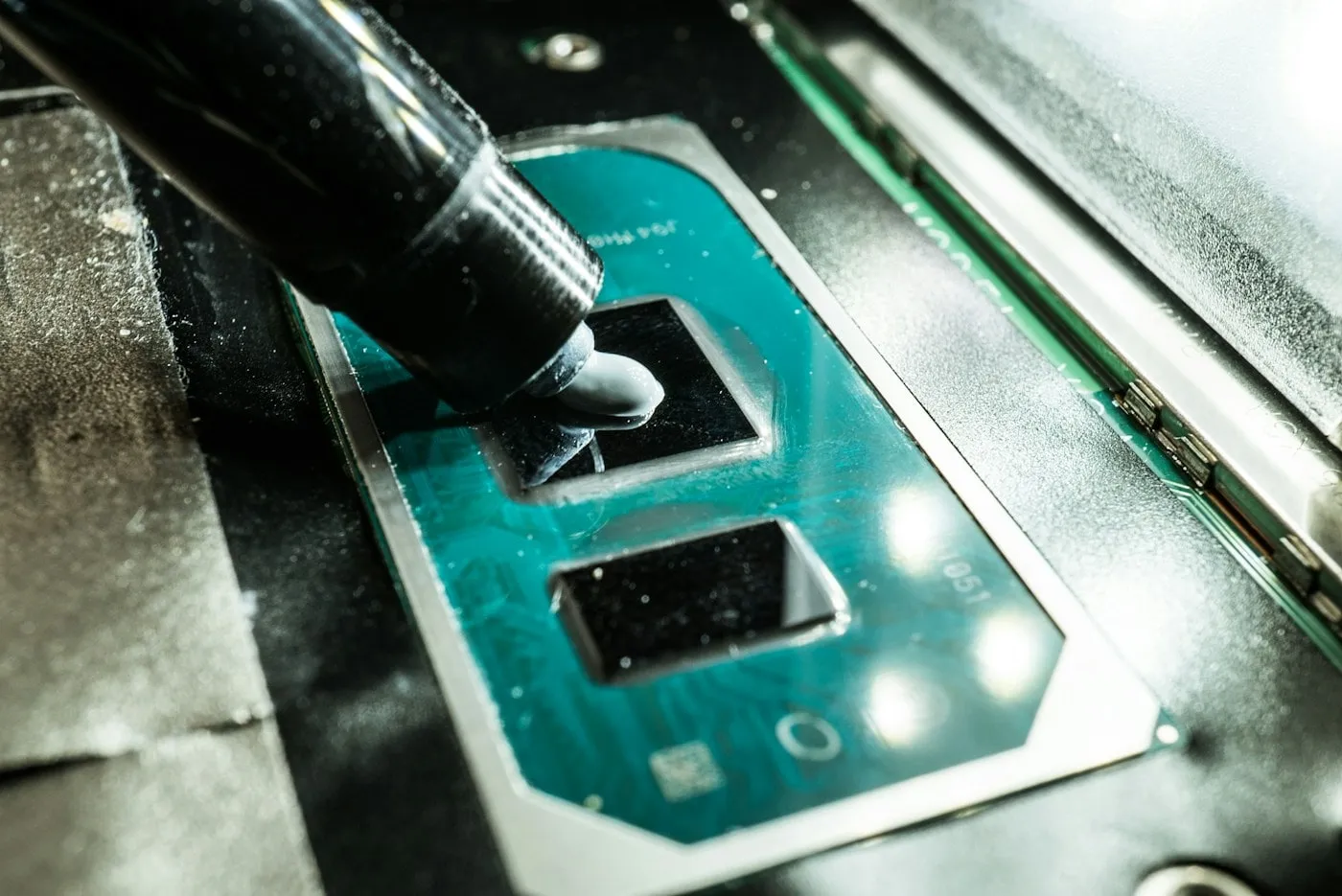
Heat leaves a laptop processor along a fixed path: from the silicon die, through a layer of thermal compound, into a copper heat pipe, along the pipe to a stack of thin aluminium fins, and out through those fins on air pushed by the fan. Every stage has to work. Degrade any one of them and the whole chain fails.
Two stages degrade with age, reliably, on every machine ever built:
- Thermal compound is a consumable. It is a paste, and it dries out. Typically in three to four years of normal use, faster in a machine that runs hot for a living. Once it is dry and cracked, there is air between the die and the heat pipe — and air is an insulator.
- Heatsink fins mat up. The fin stack is a comb with gaps under a millimetre wide. It sits directly in the fan's airflow, so everything the fan pulls in — dust, hair, pet fur, carpet fibre — arrives there first. Eventually it forms a felt mat across the exhaust and the airflow stops.
Throttling versus shutdown
These are two different events and it is worth knowing which one you have.
Thermal throttling happens first. The processor reaches its target temperature, so it reduces its own clock speed to produce less heat. Nothing crashes. The machine simply becomes slower — which is why "it is fine for ten minutes then it crawls" is the single most common description we hear. Frame rates collapse, exports take three times as long, video calls stutter.
Thermal shutdown happens when throttling is not enough. At a hard limit the firmware cuts power immediately — no warning, no save, no shutdown sequence. If your laptop switches off instantly under load and is hot to the touch, that is what you are seeing.
A machine that throttles today will usually shut down in a few months, because the underlying cause keeps getting worse.
What temperatures are actually normal
This is where most online advice goes wrong, and it panics people unnecessarily. Modern laptop processors are designed to run hot. Boost algorithms deliberately push the chip up to its thermal ceiling to extract maximum performance, then back off. A brief peak near 95–100°C under a heavy load is normal behaviour on a thin machine, not a fault.
The numbers that actually tell you something:
- Idle temperature. A laptop sitting on a desk doing nothing should settle well below its load temperature. An idle machine that will not come down, with fans audible, is a real signal.
- Sustained temperature under load. Not the peak — the plateau after ten minutes of continuous work. This is the honest measure of whether the cooling system is coping.
- Clock speed under load. The most useful number of all. If the processor is sitting at its limit and holding its clock well below base speed, it is throttling hard. If it is at its limit but maintaining sensible clocks, the cooling is doing its job.
- How fast it climbs. A healthy machine takes minutes to reach its plateau. One that hits the ceiling within thirty seconds of any load has a broken heat path.
Exact safe figures differ by processor generation and by chassis, and anyone quoting one number for all laptops is guessing. Your manufacturer's specification is the authority for your specific chip.
Checks you can do before booking anything
- Watch the numbers under a sustained load. Run something demanding for ten minutes with a monitoring tool open, and watch temperature and clock speed together. The pattern — temperature pinned at the ceiling with clocks dragged down — is the throttling signature.
- Check what the machine is standing on. Intakes are almost always on the underside. A duvet, a sofa cushion or a lap blocks them completely. Try it on a hard flat surface and see whether the behaviour changes. If it does, that was your problem and it is free to fix.
- Look at the exhaust vent in good light. You can often see the felted dust mat across the fins without opening anything. If the gaps between the fins are not visible, there is your cause.
- Listen to the fan. Rising and falling smoothly is healthy. A rattle, a grinding note, a rhythmic ticking, or a fan that spins up and immediately stops means a failing bearing.
- Check nothing is pinning a core. Open Task Manager or Activity Monitor and sort by CPU. A runaway process, a stuck update, a crypto-miner or a badly behaved browser tab will heat a laptop exactly like a cooling fault, and costs nothing to fix.
- Check the power plan and firmware. A machine locked into a maximum-performance profile will run hotter than it needs to. It is worth confirming BIOS and firmware are current, since fan curves are sometimes corrected in updates.
If the machine is clean, unobstructed, idle-cool, on a hard surface and still hitting its ceiling in thirty seconds — the heat path is the problem, and that needs the machine opening.
The four real causes, ranked by how often we see them
- Dried-out thermal compound. The most common cause by a wide margin, and the most satisfying to fix — temperatures often drop by double-digit degrees on a machine that has never been re-pasted. Any laptop over about four years old that is running hot should be suspected of this first.
- Dust-matted heatsink fins. Close behind, and frequently in the same machine. The fan can be spinning at full speed and moving almost no air. Owners with pets or carpeted rooms see this sooner.
- A failing fan bearing. Audible before it is terminal — a rattle, a grind, or a fan that no longer reaches full speed. A worn fan moves a fraction of its rated air even when it sounds like it is working hard.
- Firmware, driver or software faults. Least common, but real: a fan curve that never ramps, a GPU driver stuck in a high-power state, a background process pinning a core. Worth ruling out precisely because it costs nothing when it is the answer.
A full cooling service — complete strip, fin clean, fan inspection or replacement, premium compound and correctly specified thermal pads, then a before-and-after thermal report under sustained load — is £69 – £119 including VAT, usually same day. Where a fan needs replacing it sits at the upper end. That is the whole repair, and it is on our price list alongside everything else.
Four things that make it worse
- Treating a cooling pad as the fix. A cooling pad blowing at a blocked heatsink does very little. Use one to help a machine that already cools properly, not to compensate for one that does not.
- Compressed air into the fan without holding the blades. This spins the fan far past its rated speed and wrecks the bearing — and it often just drives the dust mat deeper into the fins rather than out. If you use air, hold the blades still and blow backwards through the exhaust vent.
- A vacuum cleaner near an open machine. Vacuum nozzles generate serious static, and static kills components silently. The damage is often latent: the laptop works today and fails next month.
- "Optimisation" software. No utility can clean a heatsink. Nothing installed in Windows will move dust. The problem is mechanical and the fix is mechanical.
One more, which is less obvious: repasting badly is worse than not repasting. Too much compound insulates. Too little leaves gaps. The wrong pad thickness on the VRM or memory can stop the heatsink seating flat against the die at all, which is how a well-meant DIY repaste ends up hotter than the dried paste it replaced.
What ignoring it actually costs
A hot laptop is not just a slow laptop. Sustained heat does cumulative damage, and the bill escalates:
- Battery life shortens permanently. Heat is the single biggest accelerator of lithium-ion capacity loss, and the battery sits directly beneath the hottest part of the chassis. See the battery guide for what that looks like in practice.
- Solder joints fatigue. Repeated heating and cooling expands and contracts the board's materials at different rates. Over years, that is what cracks the solder under a GPU or a chipset — and that is a board-level repair from £199, not a £69 clean.
- Fan bearings fail. A fan running at maximum for hours a day wears out years early.
- The performance you paid for disappears. A throttled machine can lose a third of its speed. People replace laptops over this, when the real problem was £69 of paste and a clean.
That last point is worth sitting with. A properly serviced five-year-old laptop frequently outperforms the new budget machine someone was about to replace it with — particularly if you pair the cooling service with an SSD upgrade while the machine is already open, which is the cheapest way to buy several more useful years.
Related guides
- HDD to SSD Upgrade: What Changes and What It Costs — the other half of making an ageing laptop feel new, and worth doing in the same visit.
- How Much Does Laptop Repair Cost in 2026? — every common fault with a real number against it.
- Repair or Replace? How to Decide Honestly — before you replace a throttling machine, run the numbers properly.
Get it looked at properly
Overheating is one of the easiest faults to confirm objectively, and one of the most commonly misdiagnosed by guesswork. Our £29 bench diagnosis puts the machine under a sustained load with a thermal camera on the board, records the temperature plateau and the clock speeds it can actually hold, inspects the fin stack and fan bearing, and tells you whether you are looking at a £69 service or something structural. The fee comes off the repair in full.
You then get one fixed price covering parts, labour and VAT, with 12 months of parts-and-labour warranty and a before-and-after thermal report so you can see what changed. Book a cooling service or a free diagnosis, or read the full price list and our thermal service details first.