
The short answer
- Three different faults get called "the battery has gone", and only one of them is the battery.
- Check the cycle count and capacity yourself first — powercfg /batteryreport on Windows, System Information on macOS.
- A battery replacement is £69 – £159; a charging port or charging-IC repair is £89 – £169.
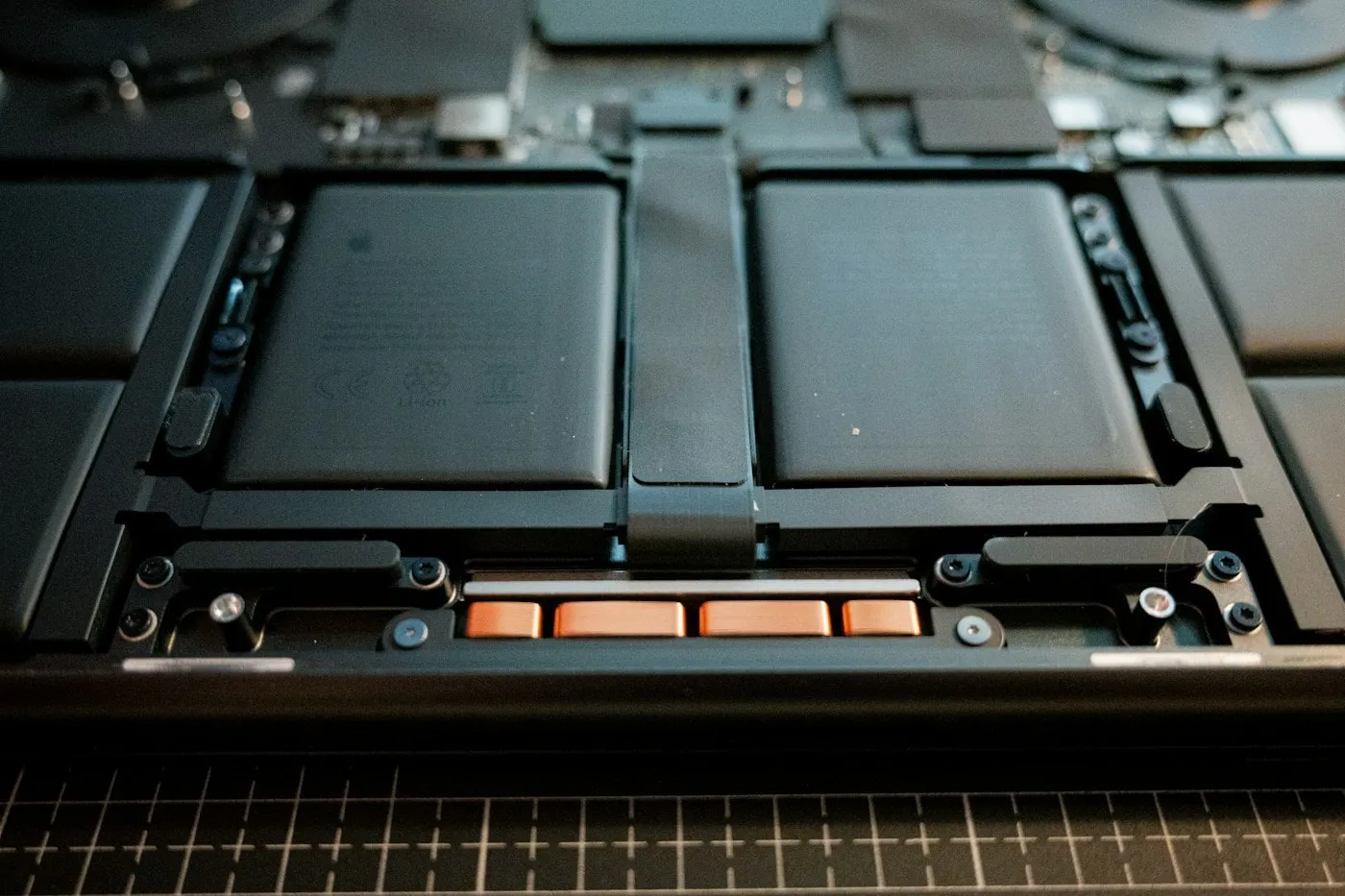
- A rising trackpad or a base that will not sit flat means a swollen cell. Stop charging and stop using the machine.
- A phone charger will not charge a 90W laptop, and a failed USB-C power negotiation looks identical to a dead battery.
"Plugged in, not charging" is one of the most misleading messages an operating system produces, because it describes a symptom without distinguishing between three faults that need three entirely different repairs at three different prices.
The good news is that you can narrow it down yourself in about ten minutes, with no tools, before you let anyone quote you for a battery.
Three faults, one description
- The cells are genuinely worn out. Lithium-ion capacity falls with every charge cycle and with time. Eventually the pack holds so little that the machine is effectively mains-only. This one is fixed by a new battery.
- The charging circuit on the board has failed. A charging IC, a MOSFET, a sense resistor or a fuse. The battery is perfectly healthy; the machine simply cannot push current into it any more. A new battery changes nothing. This is a board-level repair.
- The DC jack or USB-C port has fractured. Solder joints crack from being knocked, tripped over, or levered by a stiff cable. The connection becomes intermittent — which is why people end up propping the charger at a particular angle. Again, a new battery changes nothing.
There is a fourth possibility worth ruling out before any of them: the charger itself. Power supplies fail more often than people expect, and a failing one can deliver enough to run the machine but not enough to charge it.
Read your own battery health first
Before anyone opens the machine, find out whether the pack is actually worn. Both operating systems will tell you for free.
On Windows
Open Command Prompt or PowerShell as administrator and run:
powercfg /batteryreport
It writes an HTML file and prints the path — usually in your user folder. Open it in a browser and look for two things in the "Installed batteries" section:
- Design capacity versus full charge capacity. Design capacity is what the pack held when new; full charge capacity is what it holds now. The ratio between them is the honest measure of wear.
- Cycle count. One cycle is one full discharge worth of use, not one plug-in. The report also charts your recent usage, which is useful for spotting a pack that has collapsed suddenly rather than gradually.
On macOS
Hold Option and click the Apple menu, choose System Information, then Power. You get cycle count, full charge capacity and a condition field. Apple publishes the rated cycle count for each model in its own battery service and cycle count documentation.
How to read the result
Most laptop packs are specified to retain around 80% of their design capacity at somewhere between 500 and 1,000 cycles, depending on the machine. So:
- Low cycle count, capacity close to design, but not charging. The battery is fine. Your fault is the charging circuit or the port — do not let anyone sell you a battery.
- High cycle count, capacity well down. The pack is worn. A replacement is the right repair.
- Capacity collapsed with a low cycle count. Often heat damage rather than use. Worth also reading the overheating guide, because the cooling system is likely to be the underlying cause.
- No battery detected at all. Either a dead pack, a failed connector, or a board fault. Needs measuring.
Safe checks, in order
- Try a known-good charger of the correct wattage. Borrow one from an identical or compatible machine. This single test resolves a surprising share of cases. Match the wattage — see the USB-C section below for why that matters.
- Look at the charger's own indicator. Many power bricks have an LED. If it goes out, dims, or flickers when you plug it into the laptop, the supply is either failing or being pulled down by a short in the machine.
- Try a different wall socket, and remove any extension or surge strip. Cheap and occasionally the whole answer.
- Inspect the DC jack or USB-C port closely. Look for movement when you wiggle the plug gently, discolouration, scorching, or debris packed into the port. A port that moves relative to the chassis has fractured solder joints underneath.
- Check the cable along its whole length, especially where it exits the brick and where it enters the plug. Kinks and flattened sections are where conductors break.
- Try running with the battery removed, if — and only if — your machine has a removable pack. If it runs fine on mains alone, the board is delivering power and the fault is isolated to the battery or its charging path. Do not attempt this on a glued-in or screwed-in internal pack, and never on a swollen one.
- Check for a charge limit you forgot about. Many business laptops and most MacBooks have a battery-conservation or optimised-charging feature that deliberately stops at 60–80%. A machine sitting at 80% and reporting "not charging" may be working exactly as configured.
The USB-C complication
USB-C charging introduced a failure mode that did not exist with barrel jacks: the charger and the laptop have to negotiate. USB Power Delivery is a conversation, and when it fails the result looks exactly like a dead battery.
What goes wrong:
- Insufficient wattage. A 20W phone charger fits a 90W laptop perfectly and will charge it either extremely slowly or not at all — and under load the machine may drain while "charging". The connector fitting proves nothing.
- An unrated cable. Not every USB-C cable carries high power. Some are data-only. Some are rated to 60W and silently cap a 100W supply. A cable that works with your phone tells you nothing about whether it can run a laptop.
- Failed negotiation. The CC pins that carry that conversation are tiny, exposed at the mouth of the port, and vulnerable to debris and corrosion. When they fail, the machine sees a cable but never agrees a power contract, so it draws nothing.
- The wrong port. On many laptops only some USB-C ports support charging. Worth trying every one.
Before assuming a fault: use the manufacturer's own charger and cable, and try each port. If the machine charges from one port and not another, the fault is the port, not the battery.
Swollen batteries: stop using the machine
This is the one part of this guide that is a safety matter rather than a cost matter.
A lithium-ion cell that has failed internally produces gas, and the pouch expands. The signs, roughly in the order you notice them:
- The trackpad stops clicking properly, or sits proud of the palm rest.
- The laptop rocks on a flat table, or the base is visibly bowed.
- The lid no longer closes flush.
- The bottom cover's screws pull away, or seams open up.
- The keyboard deck bulges beneath the keys.
If you see any of those:
- Shut the machine down and stop using it. Do not just close the lid.
- Unplug it and do not charge it again. Charging a swollen cell is the highest-risk thing you can do.
- Do not press on the bulge, do not try to lever the pack out, and never puncture it. A punctured cell can vent burning electrolyte.
- Keep it somewhere cool, off soft furnishings, away from anything flammable.
- Transport it in a rigid container, not squeezed into a bag with books pressing on it.
A swollen pack must not go in household waste or general recycling. We remove, contain and dispose of them under the correct waste route as part of the repair. Swollen-cell removal and replacement is £89 – £179 depending on how the pack is fixed in, and it is the one repair we will prioritise if you call rather than email.
What each repair costs
| Repair | Typical price | What drives it | Turnaround |
|---|---|---|---|
| Battery replacement | £69 – £159 | Cell chemistry, and whether the pack is glued or screwed in | 24 hours |
| Swollen cell removal & replacement | £89 – £179 | Safe extraction, containment and licensed disposal | 24 – 48 hours |
| Charging port / DC jack repair | £89 – £169 | Port soldered to the board or on a separate daughterboard | 24 – 48 hours |
| Charging IC / MOSFET replacement | £199 – £449 | Component-level work under a microscope | 3 – 5 days |
A replacement charger, where that turns out to be the whole problem, is cheaper than all of the above — and we will tell you if that is what you need. The full list sits on our pricing page, and the work is described on the battery and power service page.
Making a healthy battery last
- Use the charge limit if your machine has one. Most business laptops and MacBooks can cap charging at around 80%. Sitting at a lower state of charge measurably slows capacity loss, and you give up very little in practice.
- Keep it cool. Heat degrades cells faster than cycles do, and the battery sits right under the hottest part of the chassis. A laptop that runs hot is quietly destroying its own battery — which is the real argument for fixing an overheating machine promptly.
- Do not worry about leaving it plugged in. This advice is a holdover from nickel-based batteries. Modern laptops stop charging at 100% and run from the mains. Constant heat while plugged in is the real risk, not the plug itself.
- Avoid routinely running to zero. Deep discharges are harder on lithium-ion than shallow ones. Occasional full discharges are fine; a daily habit of them is not.
- Store a spare or a rarely used laptop at around half charge, not full and not empty, somewhere cool.
Related guides
- Laptop Won’t Turn On? Work Through This First — if the machine will not power on at all, even on mains, start there instead.
- Laptop Overheating and Shutting Down — heat is the biggest accelerator of battery wear, so the two faults are often the same story.
- How Much Does Laptop Repair Cost in 2026? — every common fault priced, and the five questions to ask before approving any quote.
Get it looked at properly
Distinguishing a worn pack from a failed charging circuit takes a bench supply and a meter, not a guess. Our £29 diagnosis reads the cycle count and true capacity, measures what the board is actually delivering to the pack, and checks the port for fractured joints — so the quote you get is for the fault you have. The fee comes off the repair in full.
You then get one fixed price for parts, labour and VAT, with 12 months of parts-and-labour warranty. If the honest answer is "buy a £25 charger", that is the answer you will get. Send us the model and what it is doing — or call, if the trackpad is rising — and read the full price list first if you want the numbers.